Your agent reads the statement. Whallet keeps the books.
The agent you already use can read your card statement and record it in Whallet, and what it records lands in a ledger that does the math and that you can…
7 min readBy Whilehaus
The agent you already use can read your card statement and record it in Whallet, and what it records lands in a ledger that does the math and that you can review. You connect the agent once, and you choose its permission. Next to other ways of getting your accounts in without typing them, Whallet is one more option.
You bring the agent, Whallet brings the ledger
Whallet is a personal, multi-currency ledger that is live at wallet.whilehaus.net, and it has no AI of its own: it doesn't read statements or interpret anything by itself. What it offers is an MCP server, the door through which an assistant gets into an application, so you can add the agent you already use. The agent is the assistant you already talk to, and any one that lets you add an MCP connector will work. You choose it, and whatever goes through it, from the statement to what it looks up in the ledger, falls under the terms of whoever provides it.
The agent reads what you give it and records what its permission allows. Balances, net worth, analytics and who owes whom in a group are calculated by the ledger, and the agent looks them up. Whallet doesn't connect to your bank or move money, and on its side it puts no cap on the agent's queries.
The intelligence comes from the agent you chose, and Whallet provides the ledger where what it records is kept and where you review it.
Two ways to connect it, once and from a computer
There are two ways to connect the agent. Both start on Whallet's Agents screen and are done once from a computer, because most assistants only add connectors from the web or the desktop app. After that, you can use the agent from your phone too.
The first is the connector by URL: you paste the address shown in Agents into your assistant, sign in to Whallet and authorize the connection. Access renews on its own while the agent uses it, and you only need to authorize it again if thirty days go by without use.
The second is a token, an access key you create by hand in Agents with the New token button and paste into your assistant's settings. That token can be limited to some accounts: the agent touches only those and sees only their transactions, although the net worth total, analytics, budgets, debts and shared expenses still reach it in full. The token can also ask for a PIN every time the agent records something, while the connector by URL has no PIN and no per-account limit.
Each URL connection is listed in Agents, under Connections, with the permission you chose and its last use, and it can be revoked on the spot, just like a token.
The first load from a statement needs a token created by hand with permission to record, because that is the one the Import screen recognizes.
Read only, writes, or asks first
When you connect, on either path, you choose what the agent can do.
- Read only. The write tools never reach it: this isn't an instruction the agent could ignore, because the catalog it receives doesn't include them.
- Writes. It records in the ledger without waiting for your approval, and what it records shows up in your accounts like any other transaction.
- Asks first. Every change it requests waits for your approval before it applies.
With any permission, the agent reads the ledger: accounts and balances, transactions, net worth, budgets, investments, installments, debts and shared expenses. If its permission lets it record, it adds transactions and transfers, sets up accounts, categories, installment plans and investment positions, records debts and shared expenses with their payments, and can correct a transaction already entered. What it doesn't do is delete transactions or touch budgets, goals, planned payments or rules.
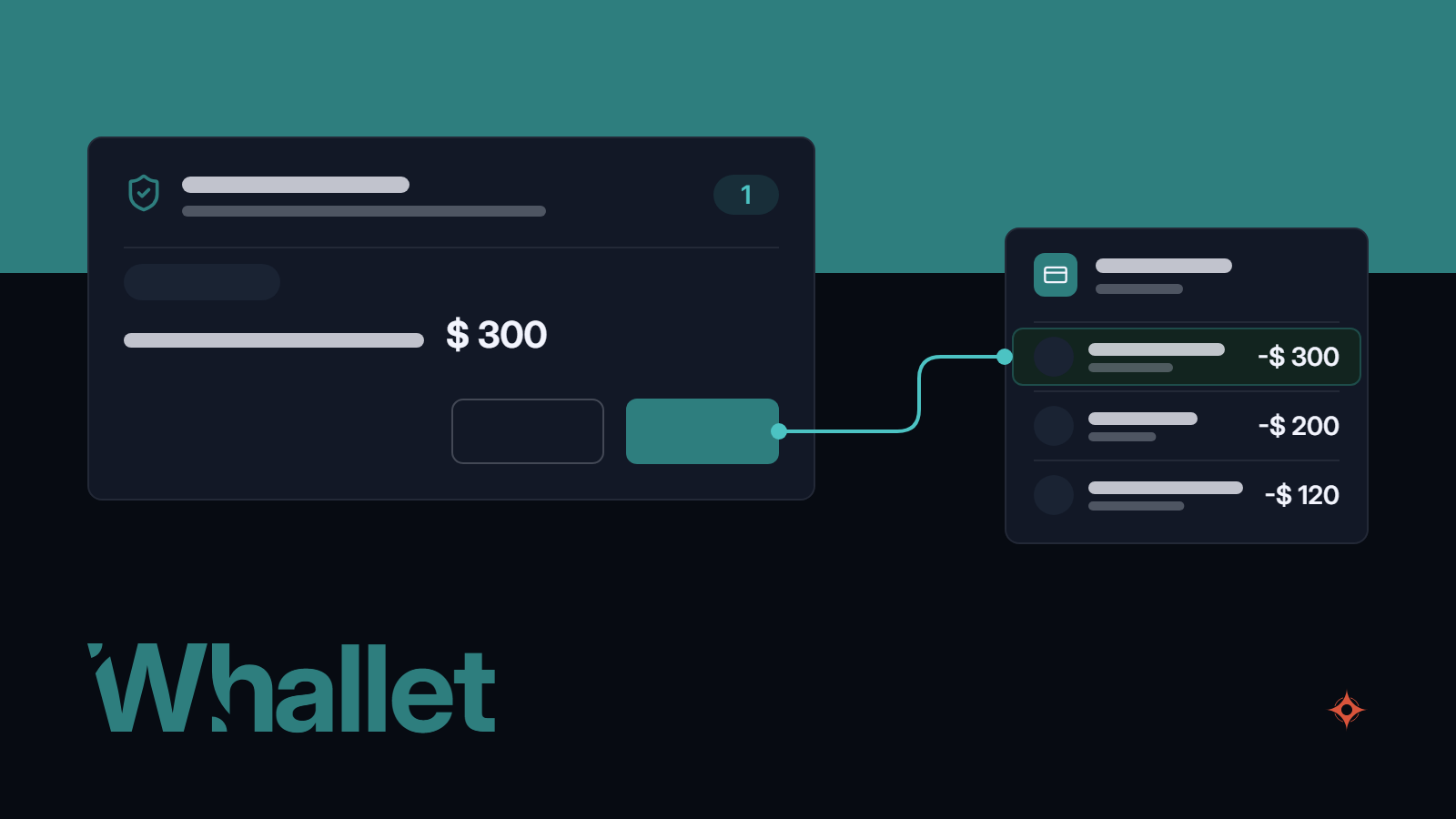
If you chose confirmation, what the agent requests collects in Agents, under Pending changes, with a counter of what is still waiting for approval. At that moment, the agent is told that the change is pending and that it shouldn't report it as done. If you approve a change, it applies exactly as the agent requested it, and if you reject it, it's discarded.
The first load, from your card statement
The first load starts on the Import screen, in the First load with your agent section, and uses the token that can record. You choose whether you're loading a card statement or an account statement, and Whallet gives you a text to paste into your agent's chat along with the PDF. If that token asks first, each purchase waits in Pending changes until you approve it.
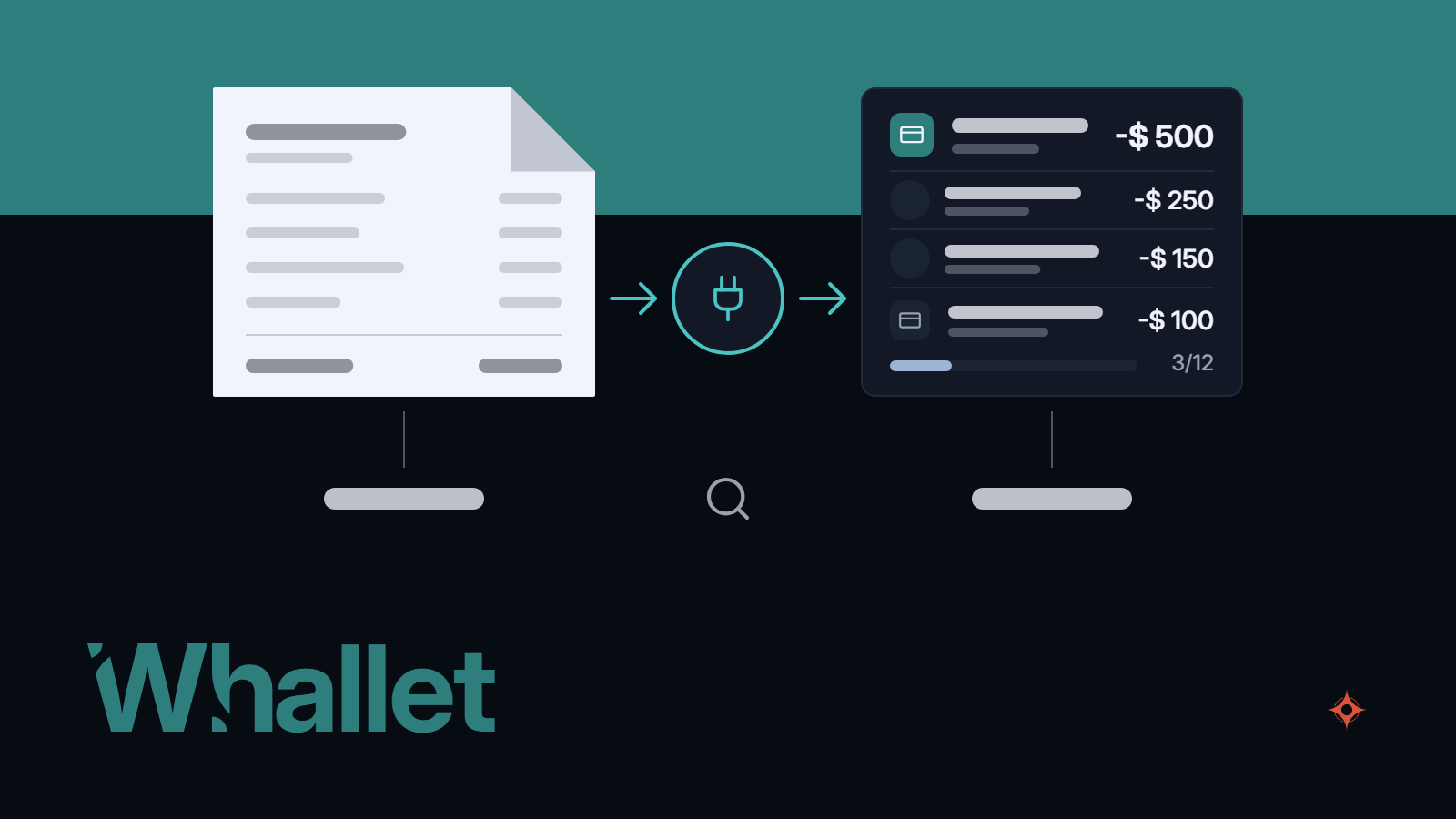
Since Whallet only imports CSV files, the PDF is read by your agent, and the text tells it what to do: recognize the accounts you already have, avoid duplicating what's already there, record each purchase and set up purchases paid in installments as a plan.
What the agent recorded appears in Records and in the card's account, and purchases paid in installments also show up on the Installments screen. A regular purchase is corrected in Records like any transaction you entered yourself.
When it's done, if you give that card or account a name, Whallet saves the load as a skill, a ready-made text for repeating it that stays in that browser: next month you copy it in one click, and the text asks the agent to load only what's new into the same account. If you want the load to repeat every month, you set that up in your agent's scheduled tasks, because Whallet doesn't have them.
What the agent records isn't taken on faith: the first load ends with the ledger balance next to the statement balance.
Without an agent, the same ledger
If you don't use an agent, the + button lets you enter each transaction by hand: the account, the amount with its calculator, the category, the payee, the tags and a note.
In Import you upload a CSV in three steps: you pick the file and the account, mark the date, description and amount columns, and check the preview. Rows with an invalid amount are skipped without stopping the rest, and every import stays in a history from which it can be undone in full.
Rules, which you set up on the Rules screen, take each transaction that meets their conditions and assign it a category, change its payee or turn it into a transfer. They run the same way on what you enter, what you import and what the agent records, and the agent knows them from the moment it connects.
Other ways to get your accounts in without typing
The agent on its own, with the statement pasted into the chat, needs nothing installed: it reads the PDF, adds things up and explains. What it calculates, however, stays in that conversation and not in a ledger: the agent does the math, and next month you start over.
An app with its own bot lets you log expenses through a messaging app, by text, voice note or photo, even if you don't have an assistant. But the model belongs to the app, which also tends to cap the number of messages, and what you record ends up shaped the way that app does things.
Aggregators that connect to your banks bring in transactions without you entering anything, and some connect to assistants. In exchange, they depend on your bank and your currency being covered, they tend to leave out crypto and debts between people, and they give an intermediary access to your accounts.
What Whallet solves with your agent, and what it doesn't
- It fits if you already use an agent and want what it records to land in a ledger you can review and correct, if you want to choose what the agent can do, if you'd rather not give anyone access to your bank and if you want each month's statement not to stay stuck in a conversation.
- It doesn't fit if your assistant doesn't let you add connectors, if you want to log expenses through a messaging app without having an agent, if you need the app to read the PDF or your email by itself or if you need to separate what the agent entered from what you entered, because the ledger doesn't mark it as the agent's.
The agent records. The ledger does the math.